1.If the device contains any files you want to save, copy them to another storage device or volume.
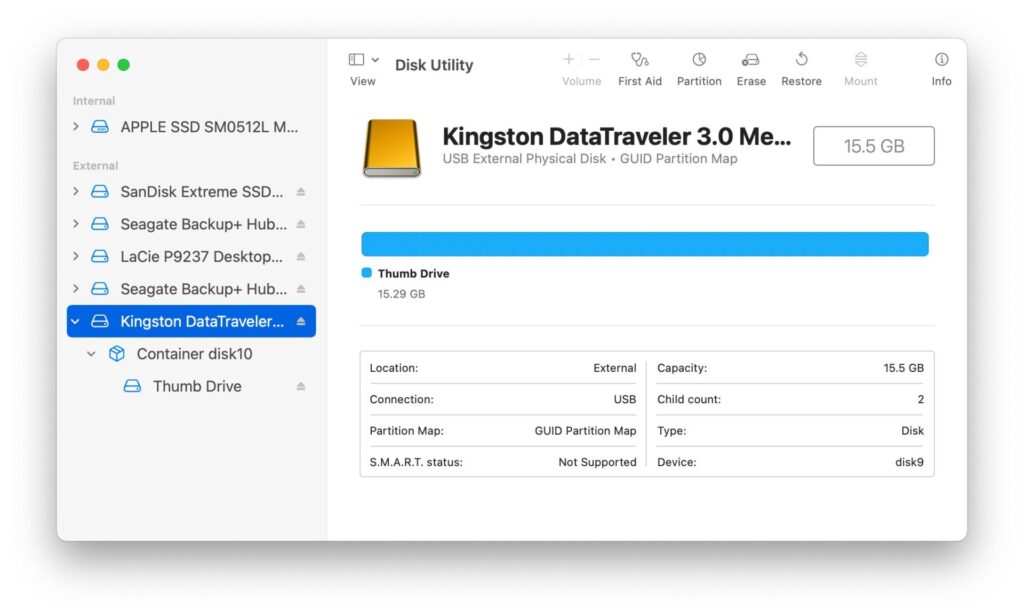
2.In the Disk Utility app on your Mac, choose View > Show All Devices.
If Disk Utility isn’t open, click the Launchpad icon in the Dock, type Disk Utility in the Search field, then click the Disk Utility icon.
3.In the sidebar, select the storage device you want to encrypt.
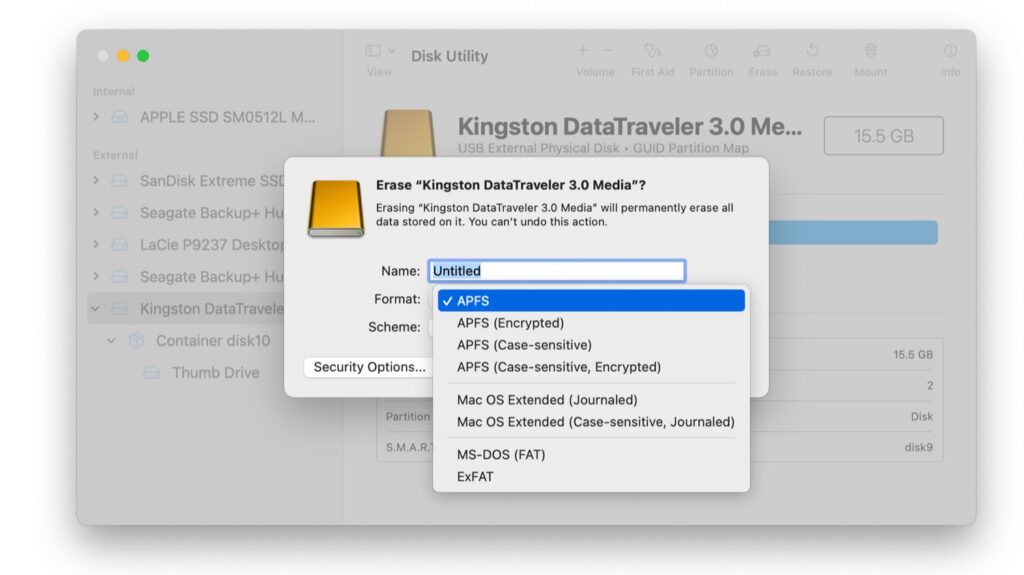
4.Click the Erase button in the toolbar.
5.Enter a name for the volume.
6.Click the Scheme pop-up menu, then choose GUID Partition Map.
7.Click the Format pop-up menu, then choose Apple File System (APFS) [Encrypted]
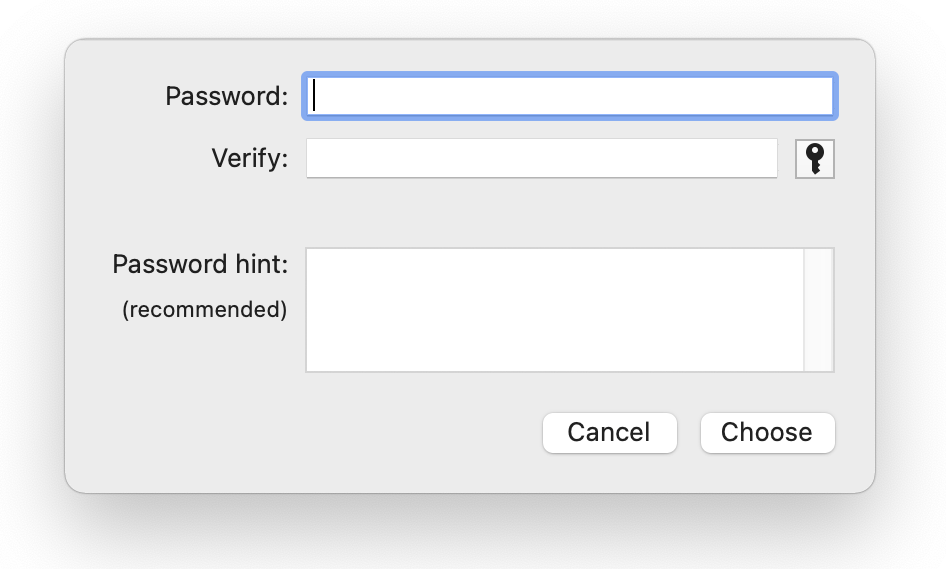
8.Enter and verify a password, then click Choose.
To change the password later, select the volume in the sidebar, then choose File > Change Password.
9.(Optional) If available, click Security Options, use the slider to choose how many times to write over the erased data, then click OK.
Secure erase options are available only for some types of storage devices. If the Security Options button is not available, you can’t use Disk Utility to perform a secure erase on the storage device.