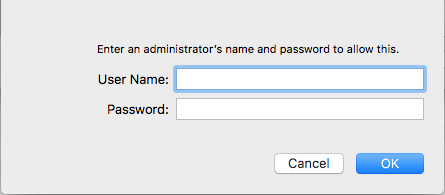
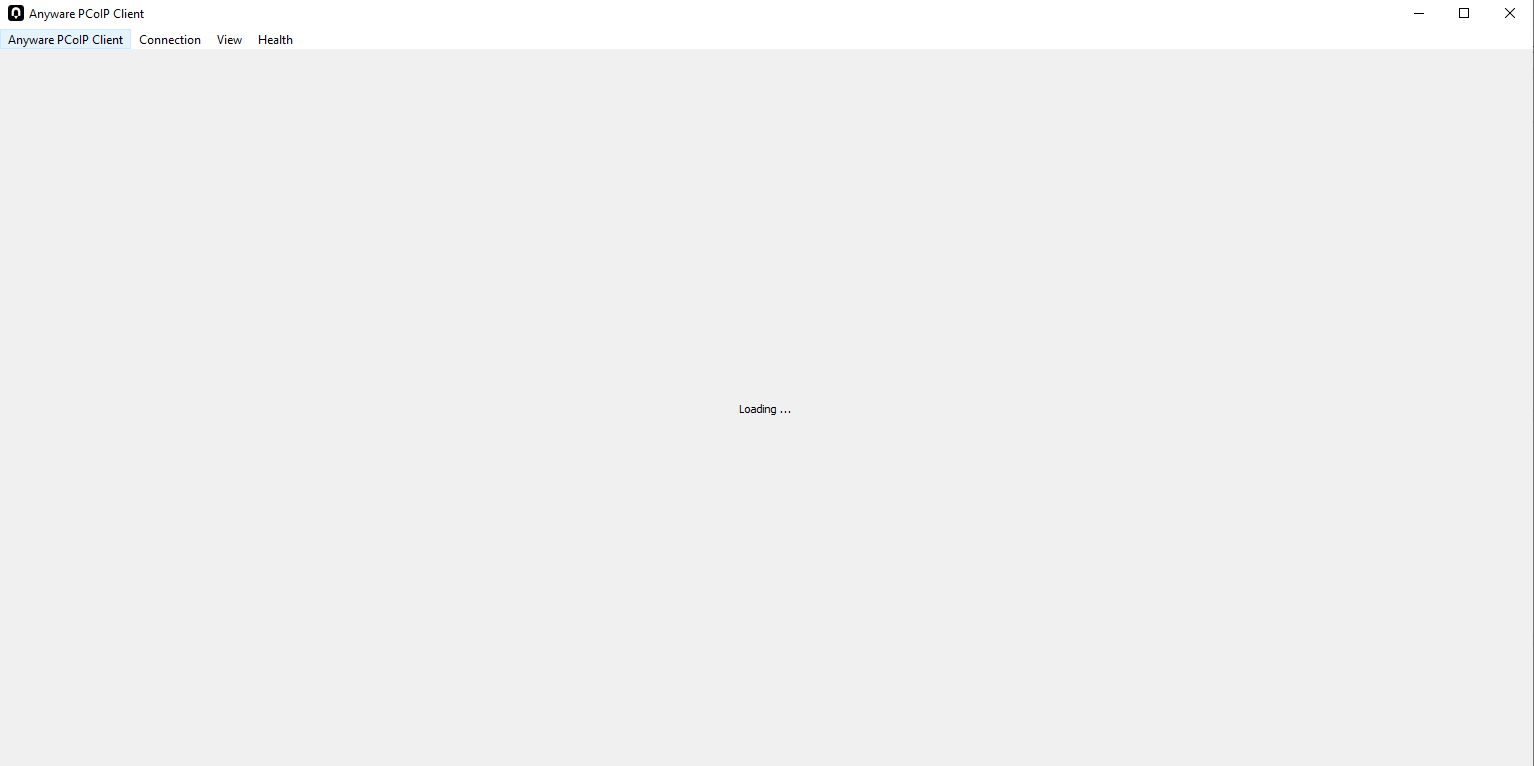
1. Download the installer from the link above. Run pcoip-client_25.10.2.dmgand enter your Mac Admin credentials to finalise the installation.
2. OpentheAnywherePCoIPClientProgram&locateto the ‘AddConnection‘ option.
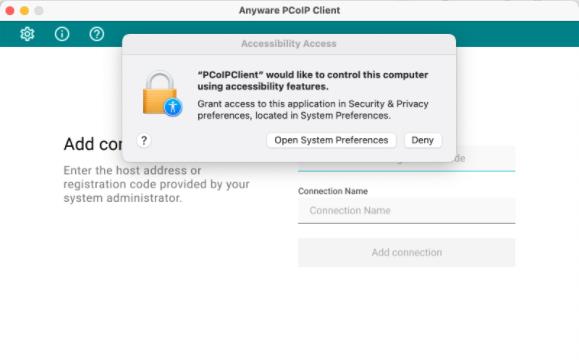
3. You’ll then bepromoted toadjustyoursystemsecuritypreferences (firsttime installation). Open your system preferences
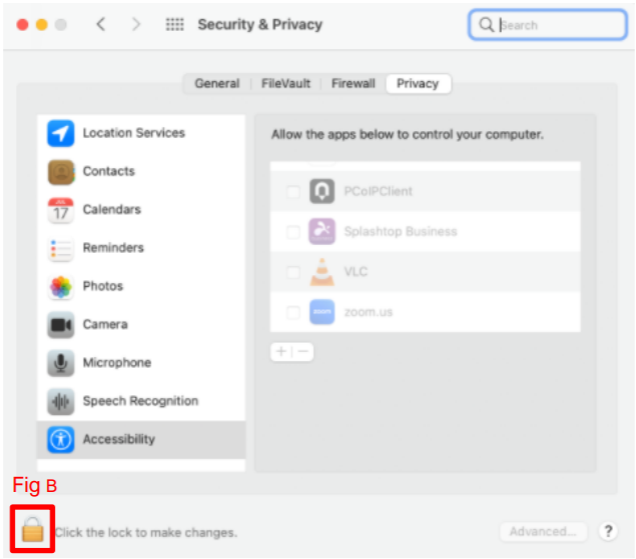
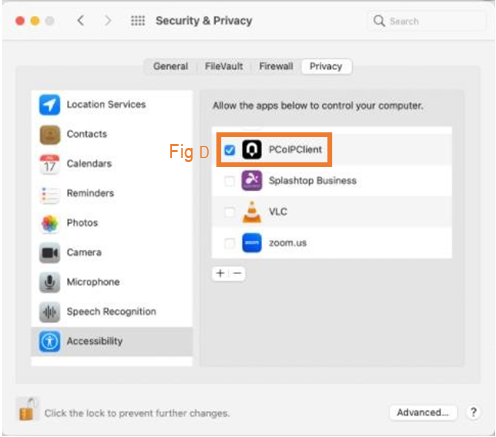
4. Locatetothe‘Accessibility’tabandunlockthepanel(Fig B)
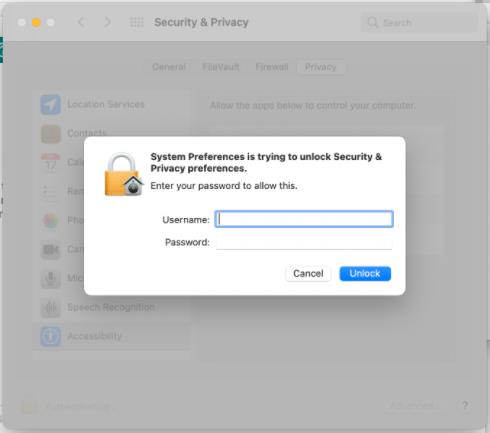
5. EnteryourMacAdmin credentialstocontinue.
6. Tick PCoIPClient within the Privacy Tab (Fig D)
7. Clickthelockoncemoretosavechanges.
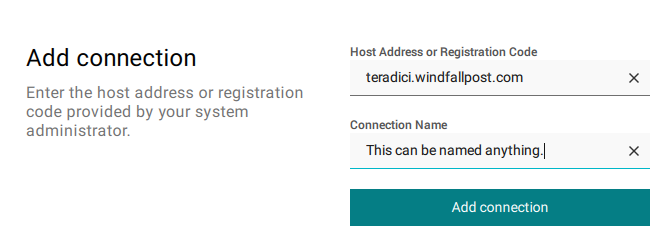
Locate back to the PCoIP Client. You can now enter the Hostname teradici.windfallpost.com. You can name the connection anything you’d like – usually the edit crate you are on. (This is for your benefit)
8. Once youhaveaddedtheconnection, youcan clickon theconnectionunder whatevernameyouwrote.
OPTIONAL – If the broker (teradici.windfallpost.com) doesn’t work, you can download the VPN and connect with the Hostname that correspondes to the machine you are on (without a dot). An example of this for Edit 7 would be edit07.