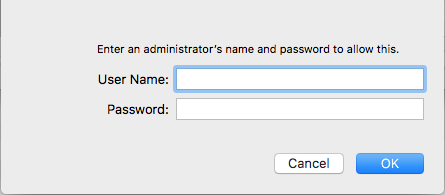
1. Download the installer & Argonon.ovpn file from the link above. Run Tunnelblick_3.8.8_build_5775.dmgand enter your Mac Admin credentials to finalise the installation.
2. Locate to your downloads and double click the Argonon.ovpn file (Fig K)
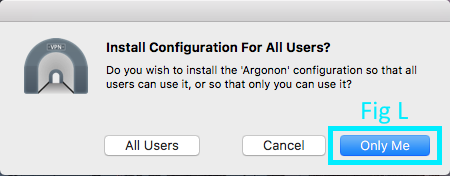
3. Install the configuration for ‘Only Me’ (Fig L)
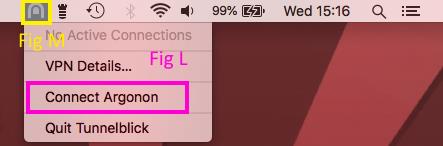
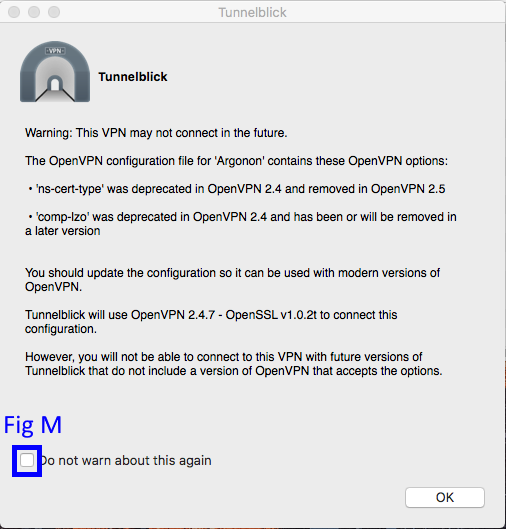
4. You should now see an icon in the top bar (Fig M). Click this and select Fig L
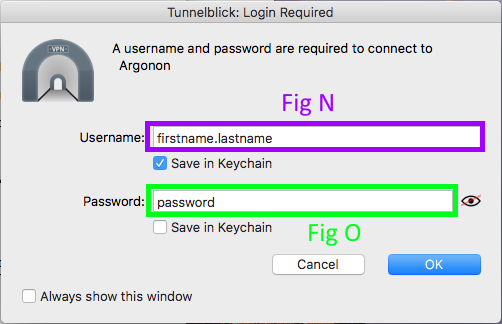
5. You’ll then be prompted with a username & password panel. Enter your edit credentials that were sent to you.
The username will always be edit.xx – xx replacing the edit crate number, unless you are using your Windfall credentials.
An example of this would be:
Username:edit.07(EP’swould usefirstname.lastname instead) Password: Hello World (EP’s would use their Windfall password)