


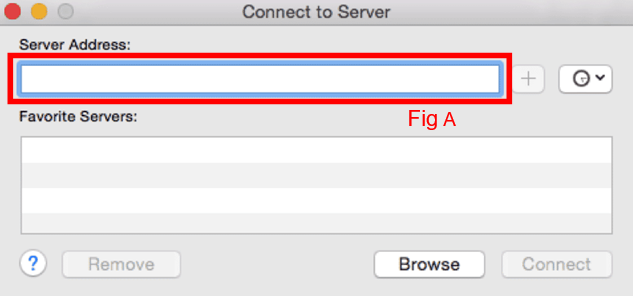
1. Open a Finder window and press “cmd + K” or In the Finder, choose Go > Connect to Server
In the Server field (Fig A) type the relevant server address and click the + to save it for later.
The address will be: smb://postsan1
Alternatively, you can use the numbered IP: smb://192.168.102.170
2. Click Connect and a prompt will appear to enter credentials. This will either be the edit credentials or your own Windfall credentials (for EP’s)
An example of this would be:
Username: edit.07 (EP’s would use firstname.lastname instead) Password: Hello World (EP’s would use their Windfall password)
3. Select production_name_tempshare from the list and press ‘OK’ to open the shared folder.

Optional – How to create a shortcut to the server on your desktop:
• Open or select a Finder window
• Click “Finder” in the top left of the screen and press “cmd + ,” to go to Finder Preferences
• Select the “General” tab in the top left of the window
• Tick “Connected servers”
You should now have a shortcut on your desktop.
You are now connected to the Tempshare on Mac.