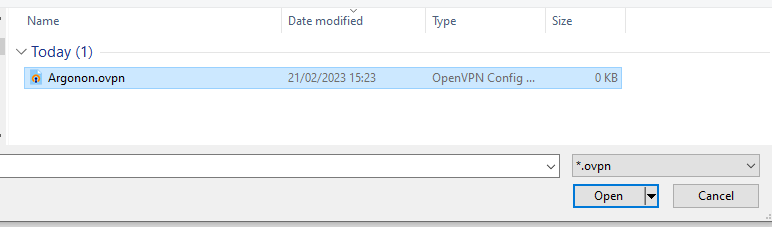
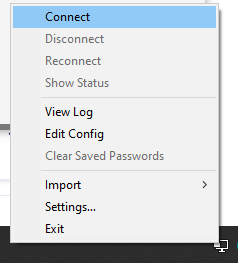
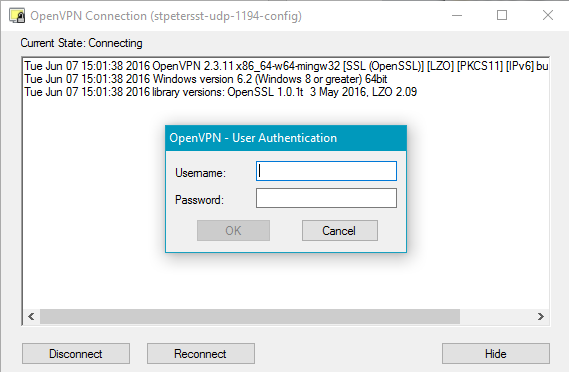
Posted on 31 May 202327 June 2025 by Tommy BowersHow to use the VPN on Windows You’ll need to connect to the VPN for remote connection to an edit suite and/or to gain access to the Tempshare for a specific production. Firstly, you’ll need to download the required program for Windows. This will be the installer & the Argonon.ovpn file.VPN for Windows Download 1. Download the installer & Argonon.ovpn file from the link above. Run and install OpenVPN-2.6.0-I005-amd64.msi 2. Right click the icon in the task bar. If there isn’t a ‘Connect’ option, you’ll need to import the Argonon.ovpn configuration file. 3. Locate to the Argonon.ovpn file and select ‘Open’ 4. Right click the icon and select ‘Connect’. 5. You’ll then be prompted with a username & password panel. Enter your edit credentials that were sent to you.The username will always be edit.xx – xx replacing the edit crate number, unless you are using your Windfall credentials.An example of this would be:Username: edit.07 (EP’s would use firstname.lastname instead)Password: Hello World (EP’s would use their Windfall password) Press ‘OK’. The icon in the task bar should turn green. You are now connected to the VPN on Windows.