

How to Upload Your Video to Argonon Viewing Link
Follow the steps below to ensure your upload is delivered correctly, branded properly, and accessible to the right people.
1. Export Your File
Before you head to Argonon, make sure your export is correct.
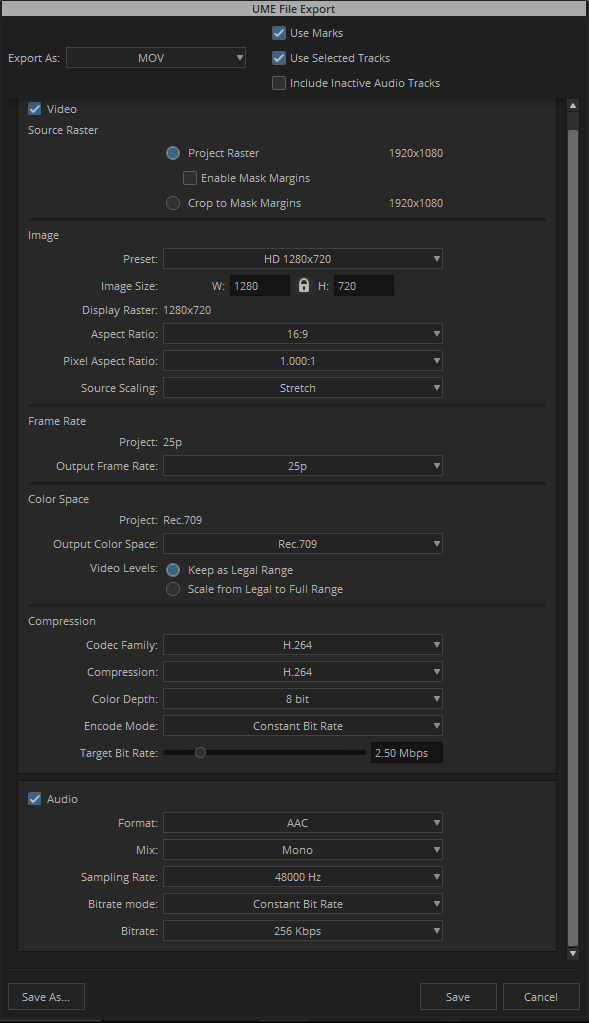
Export from Avid as .MP4 or .MOV
Double-check audio, vision, and that nothing is offline
2. Go to the Upload Portal
Head to the secure Argonon upload page:
https://videospost.argonon.com/secure/
3. Set Your Upload Options
Once you’ve selected your file, review the following:
Email Addresses
The link will be sent to the email address here.
If you included other email addresses, they will be notified once this has been uploaded.
Allow Downloads
If you want the recipient to be able to download the file, make sure you tick “Yes.”
If not selected, the video will be stream-only.
Company Logo
Select ”Windfall Films”.
This will also categorise the clip so that it can be managed by us.
Type of Video
The Type of Video you choose will automatically set how many days your file stays on the server.
Only master files will be stored in the server forever.
Fast Encode
Tick ”Yes” to skip AV1 encode if you prefer faster uploading.
Enable fast encode only if you need the upload to process more quickly, with the trade-off of less optimal compression.
Password
If you would like to have a password, input here. 8 characters max.
Leave empty if you’d like to not have a password.
4. Upload
Review your upload settings and wait for the link to be sent over to your email address.